Local model setup
Run AI models on your own machine and use them with Parth. Local models need no API key and send nothing to the cloud.
Parth supports two local providers. Both use an OpenAI-compatible server that Parth connects to:
| Provider in Parth | Default Base URL |
|---|---|
| Ollama (local) | http://localhost:11434/v1 |
| LM Studio (local) | http://localhost:1234/v1 |
Pick a model that supports tool calling. Parth’s agent works by calling tools (read, edit, search, run commands). Models without tool support can chat, but they can’t edit your project. Good coding choices: qwen2.5-coder, qwen3, llama3.1, mistral-nemo.
Ollama
Step 1: Install Ollama
- macOS / Windows: download the app from ollama.com/download and install it.
- Linux:
curl -fsSL https://ollama.com/install.sh | sh - Check it’s installed:
ollama --version
Step 2: Start the Ollama server
The desktop app starts the server for you. On Linux the installer sets it up as a service. To start it by hand:
ollama serve
Check that it’s running (it prints the models you have):
curl http://localhost:11434/v1/models
Step 3: Download a model
ollama pull qwen2.5-coder
ollama list        # the models you have
Step 4: Try the model (optional)
ollama run qwen2.5-coder "Write a function that adds two numbers"
Ollama troubleshooting
- Port already in use when running
ollama serve: the server is already running (the app or the service). That’s fine. - Logs: macOS
~/.ollama/logs/server.log; Linuxjournalctl -u ollama; Windows%LOCALAPPDATA%\Ollama\server.log. - More: Ollama docs.
LM Studio
Step 1: Install LM Studio
Download it from lmstudio.ai and run the installer.
Step 2: Download a model
- In the app: open the Discover tab (🔍), search for a model (for example
qwen2.5-coder) and click Download. - Or in a terminal, with LM Studio’s
lmsCLI:lms get qwen2.5-coderIf
lmsisn’t found, open LM Studio once, then run~/.lmstudio/bin/lms bootstrap(Windows:%USERPROFILE%\.lmstudio\bin\lms.exe bootstrap) and open a new terminal.
Step 3: Start the local server (required for Parth)
Chatting in the LM Studio window is not enough. Parth talks to LM Studio’s local server.
- In the app: open the Developer tab and switch the server on (Status: Running). It listens on port
1234. - Or in a terminal:
lms server start
Step 4: Load the model
- In the app: in the Developer tab, pick the model under Select a model to load.
- Or in a terminal:
lms ls # models you've downloaded lms load qwen2.5-coder lms ps # models currently loaded - Check the server is up and sees the model:
curl http://localhost:1234/v1/models
LM Studio troubleshooting
- Parth shows no models: make sure the server is running (Step 3) and a model is loaded (Step 4).
- Different port: if you changed the port in LM Studio, change Base URL in Parth to match.
- More: LM Studio docs.
Use the local model in Parth
Before you start, make sure the server is running and a model is downloaded (Ollama: ollama list; LM Studio: the server is on and a model is loaded).
Step 1: Connect the provider
Open the Parth panel, click ⚙, and open the Providers tab. Find Ollama (local) or LM Studio (local) in the list. Click › on its row, as on the AWS Bedrock row in this screenshot, to open its details.
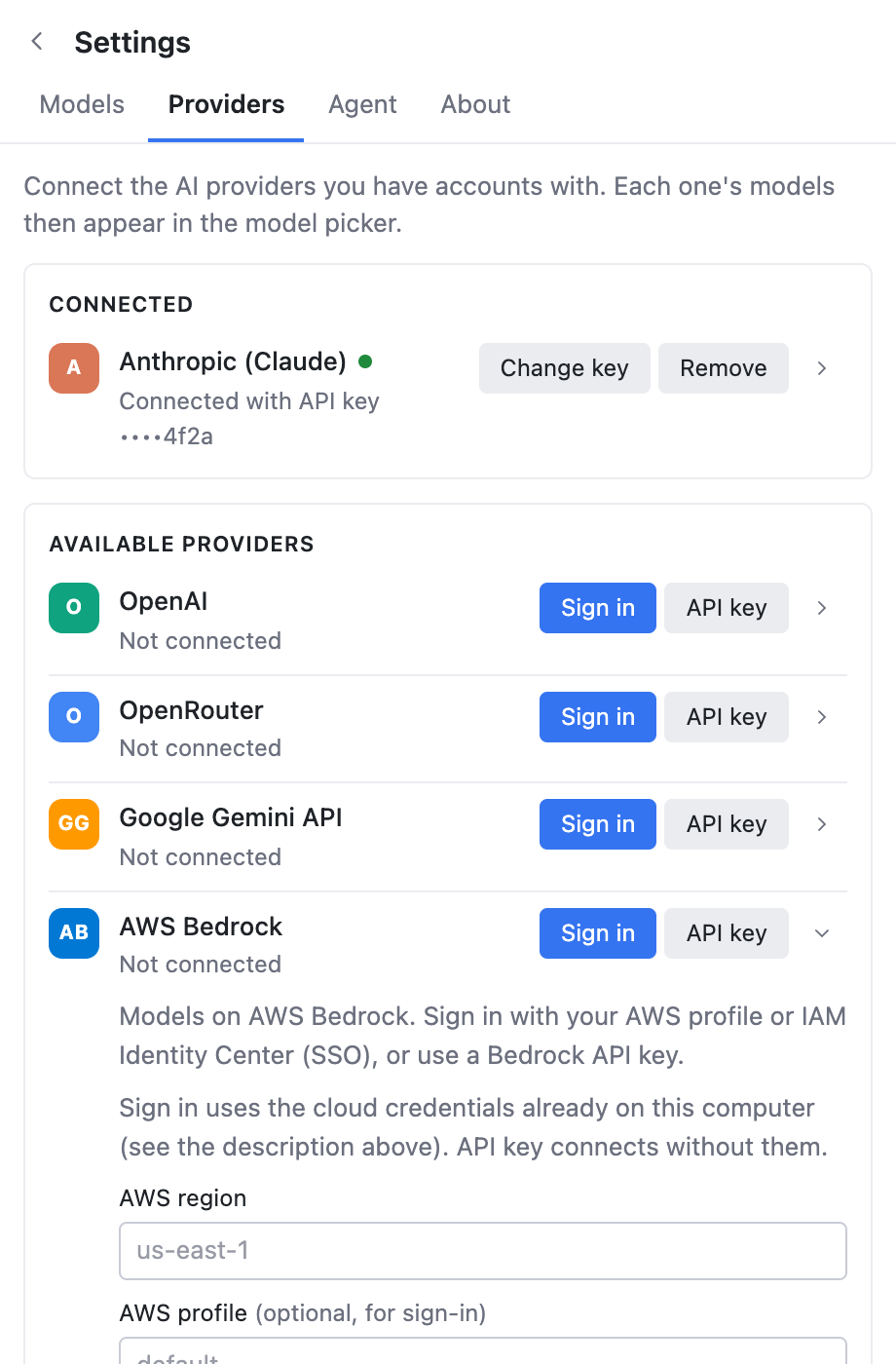
In the details, there is one value to check:
| Field | What to enter | When to change it |
|---|---|---|
| Base URL | Ollama: http://localhost:11434/v1. LM Studio: http://localhost:1234/v1 |
Only if your server runs on another host or port |
| API key | Nothing. Local models need no key | Never |
Then click Connect. If Parth says it can’t reach the server, start it (ollama serve, or switch the server on in LM Studio’s Developer tab) and click Connect again.
Step 2: Choose a model
Click the model name in the composer. Your local models appear under the provider.
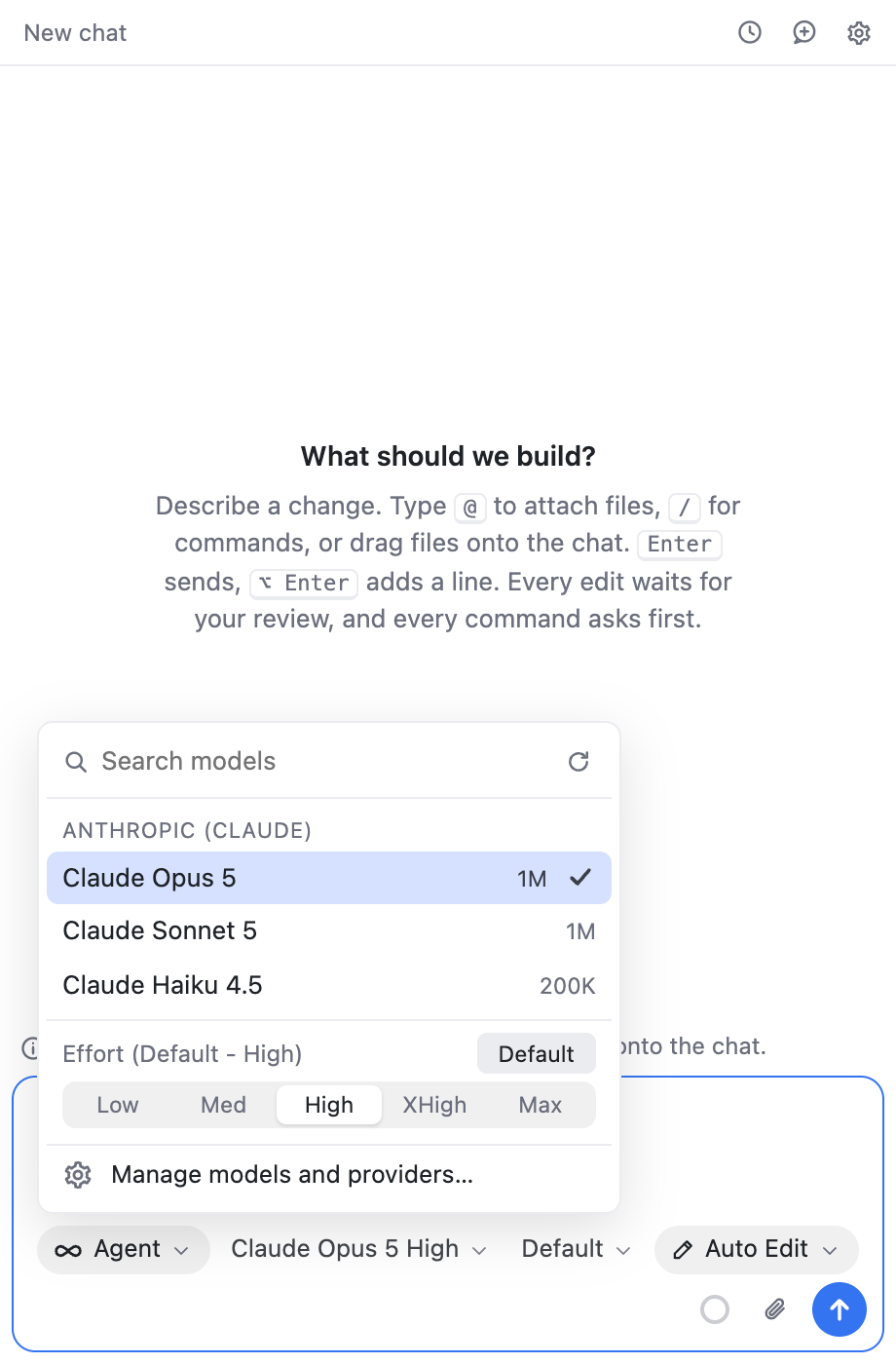
If a model is missing, click ⟳ in the model menu to refresh the list, or turn it on in ⚙ → Models, where each model has a switch.
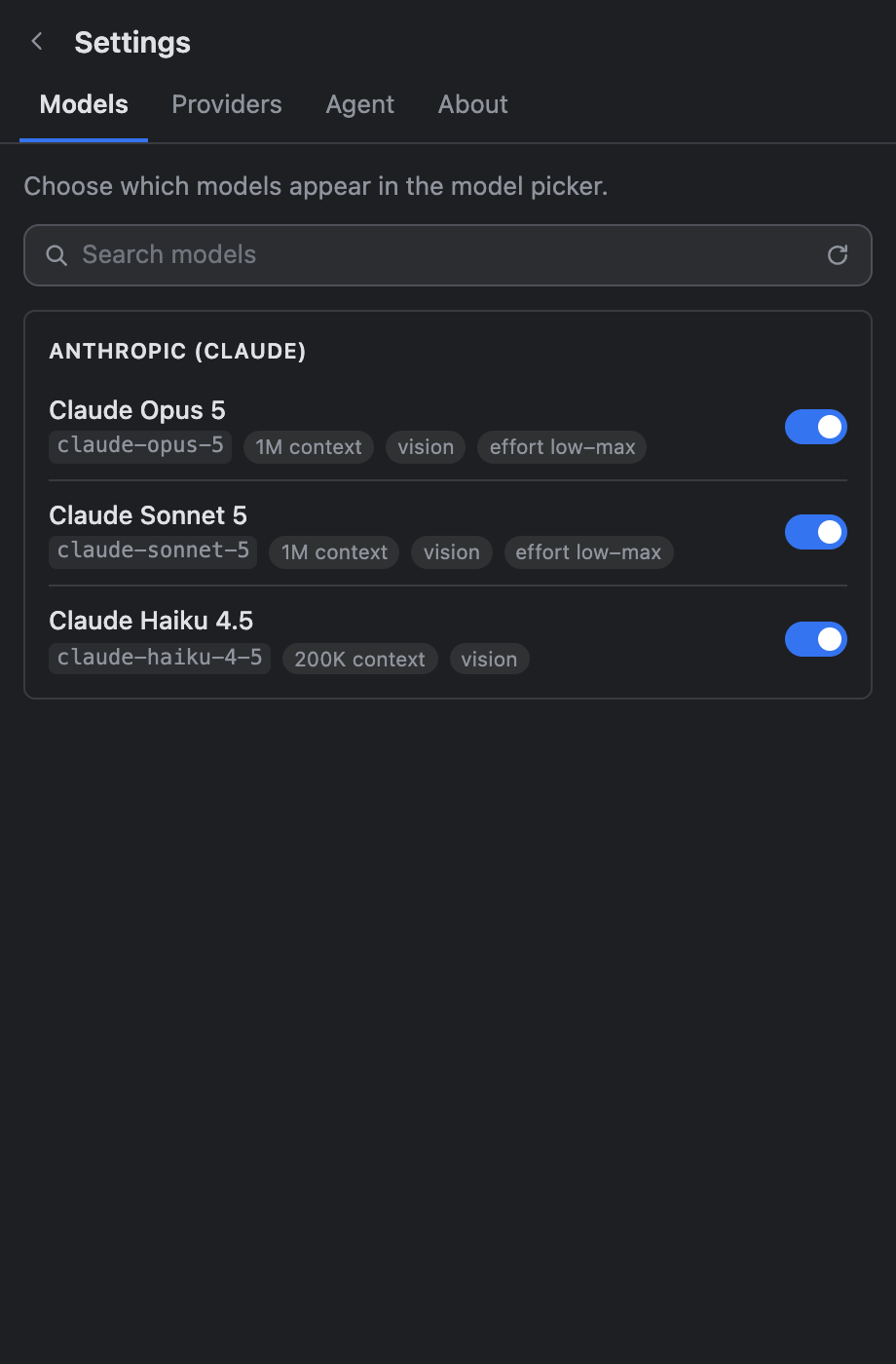
Remember that the model has to support tool calling to edit your files. A model without it can chat, but it can’t change your project.
Step 3: Make a request
Type a request in the composer, for example “Add a function that adds two numbers”, and press Enter. Small local models are slower than hosted ones, so give a first request time to finish.
Step 4: Review the changes
Changed files appear in the files changed card above the composer. Click a file to see its diff, then Keep or Undo for each file, or Keep all / Undo all.
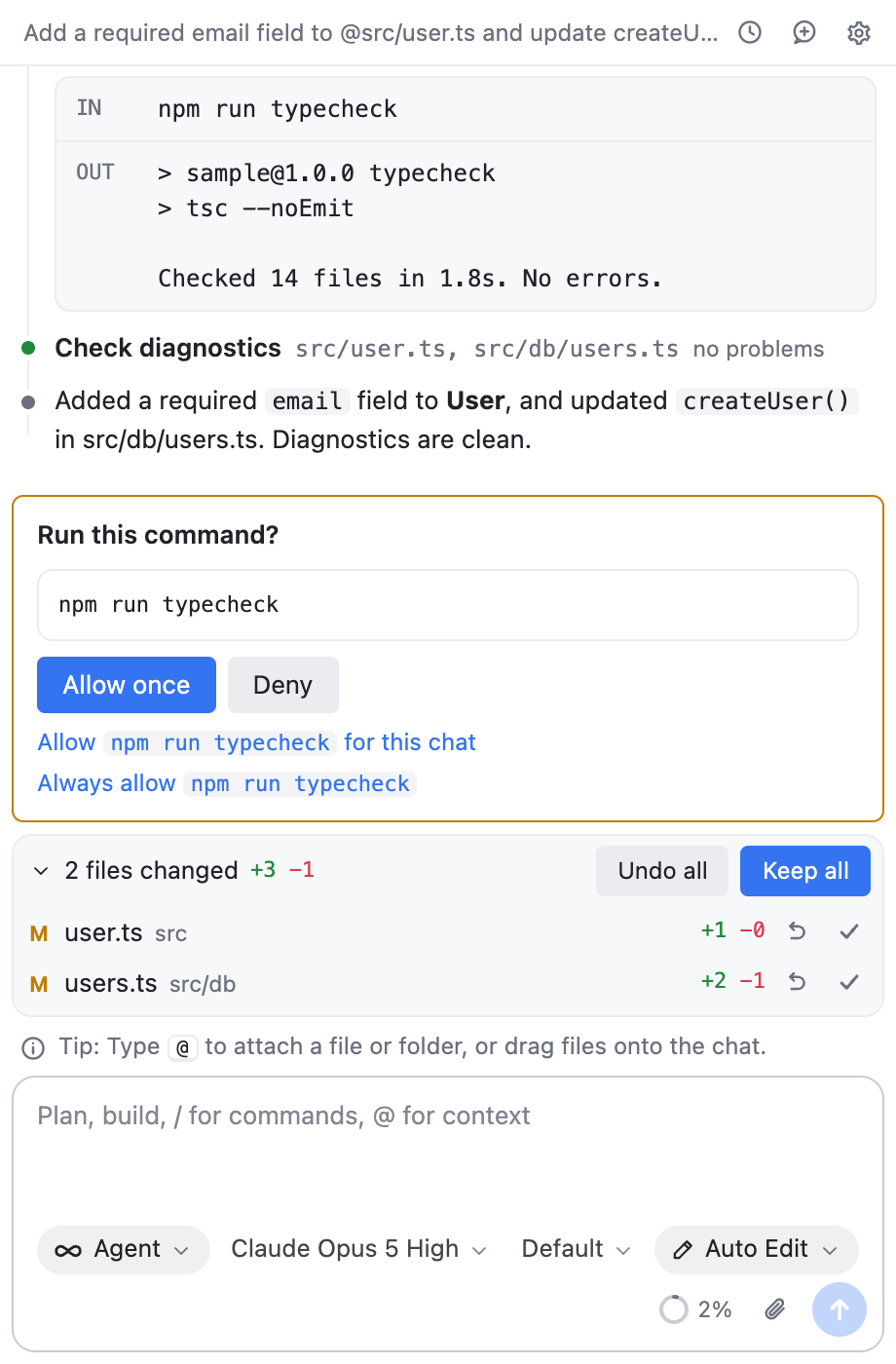
Server on another computer
If your server runs on another host or port, change Base URL under ⚙ → Providers → › for that provider, for example http://192.168.1.10:11434/v1. The server has to allow connections from your computer.