Attach files and other context
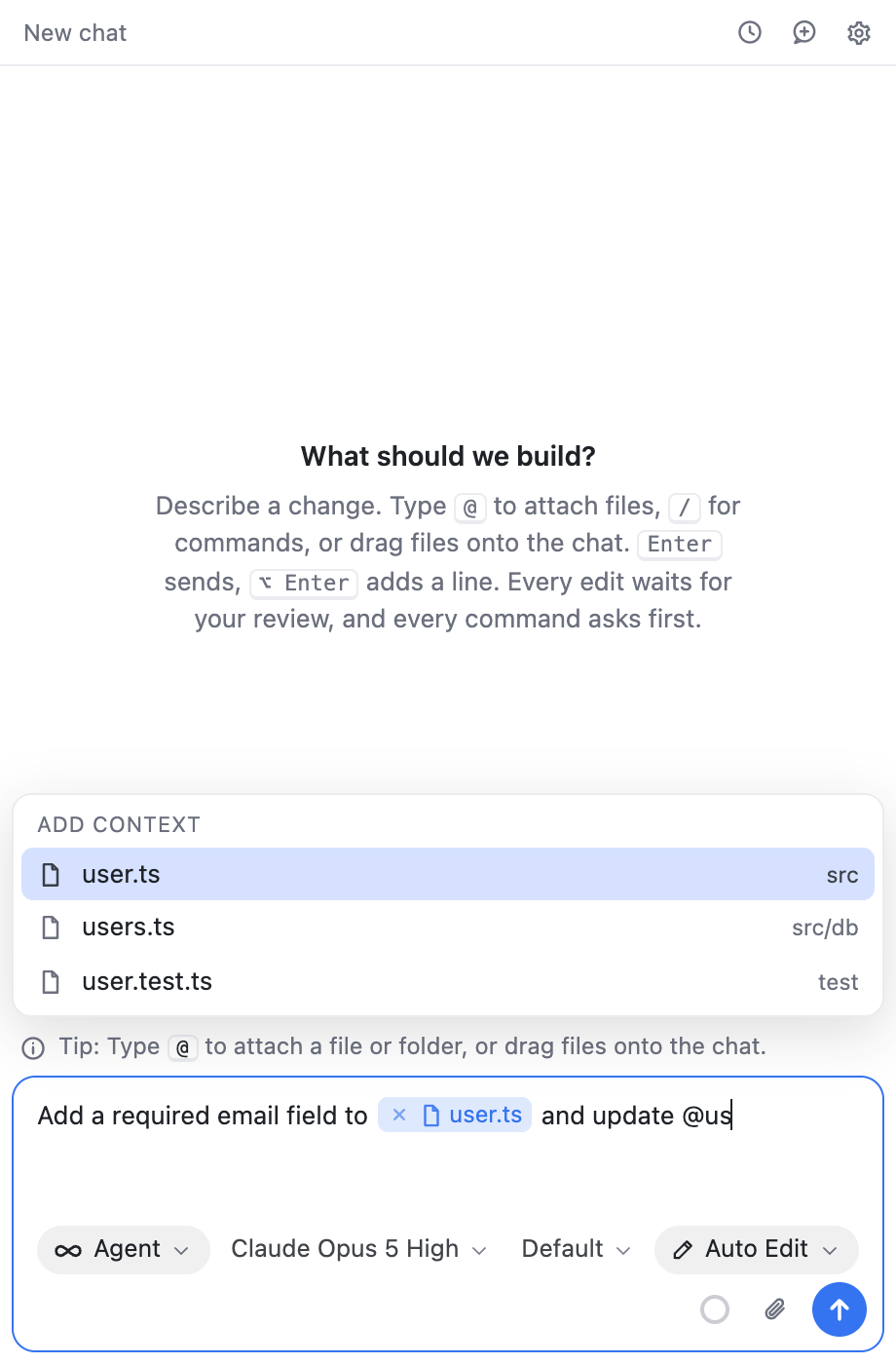
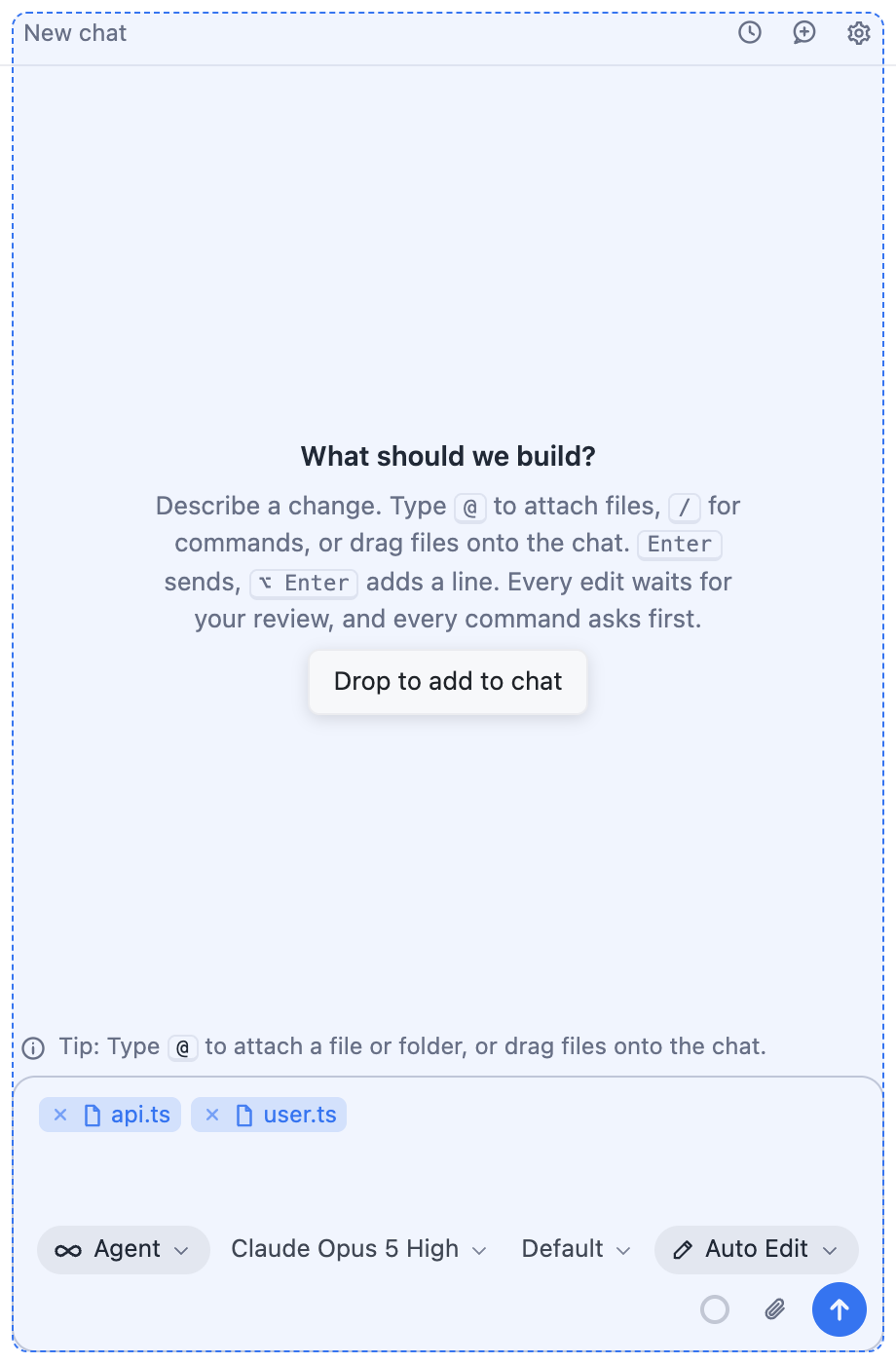
Attaching is optional, but it helps: Parth starts with exactly the files you point at. Attached items appear as pills inside your message, where the cursor was, and are sent with it.
Ways to attach
| How | VS Code and forks | JetBrains IDEs |
|---|---|---|
Type @ in the composer |
A list of files and folders appears. Keep typing to search (fuzzy), use ↑↓, then Enter. Active file is the first entry | Same |
| 📎 in the composer | The file picker opens. Choose files or folders | Same |
| Drag and drop | Drag from the Explorer, hold Shift and drop anywhere on the chat. VS Code only lets a drop reach the chat while Shift is held. A “Drop to add to chat” outline shows it’s ready | Drag from the Project view, or from Finder or Windows Explorer, and drop anywhere on the chat. The same outline shows it’s ready, and a drop on the message box puts the pill where you drop it. No Shift needed |
| Right-click | Explorer or editor tab → Add to Parth Chat | Project view or editor tab → Add to Parth Chat |
| Selected code | Right-click → Add Selection to Parth Chat (Cmd+Alt+L; Ctrl+Alt+L on Windows and Linux), which also moves the cursor to the chat | The same, with ⌥+⌘+' (Ctrl+Alt+' on Windows and Linux). Change it in Settings → Keymap |
| Pasted code | Copy several lines from an editor and paste them into the chat: they attach as a file (10-20) pill instead of pasted text |
The same |
| Jupyter notebook cell | Select lines in a cell the same way, or copy and paste them: the pill names the notebook and the cell, like analysis.ipynb [cell 3]:5-8 |
Pasting copied lines attaches them as a pill too |
| Code in an answer | The Add to Parth Chat button above a code block puts it in your next message as a fenced snippet | Same |
Remove attachments
- Delete a pill with Backspace, or click the × on it.
/clearremoves them all.- In VS Code, Parth: Clear Attachments (Command Palette) removes them all too.
What can be attached
- Files and folders from anywhere on your computer, not only the project: another repository, a log in Downloads, notes. They’re sent with that message, read-only: the agent can use what’s in them, but its tools still can’t open or change anything outside the project.
- Never sent: secret files (
.env, keys,.git), wherever they are, and binary files. - A folder from outside the project is sent as a list of its files. Attach the ones you need.
- Screenshots and images (PNG, JPEG, GIF, WebP, up to 5 MB each, 10 per message) are sent as images to models that accept them: the ones tagged vision in ⚙ → Models (Claude, GPT-4o and later, Gemini, Claude on Bedrock). Drop one from Finder or Explorer, a screenshot preview, or the project. For a model without vision, the image is named in the message but not sent, and the model tells you it can’t see it. GitHub Copilot models in VS Code are text only for now.
- Something that isn’t a file on disk, such as an unsaved Untitled editor, can’t be attached. Save it first.
In VS Code, files dragged straight from Finder or Windows Explorer can’t be attached, because VS Code doesn’t give the chat their paths (the chat tells you so). Drag them from the Explorer instead, or use 📎, which opens any folder. JetBrains IDEs attach them.
Drag and drop not working in VS Code? VS Code 1.140.0 breaks it: nothing happens on drop, and the Shift-drag outline doesn’t show. Use @, 📎 or right-click → Add to Parth Chat instead, or go back to VS Code 1.139.0. See the steps.