Settings
Parth has two places for settings: the ⚙ Settings screen inside the Parth panel, and the IDE’s own settings. The Agent options are saved in the IDE’s settings, so you can change them in either place.
- The ⚙ Settings screen
- Settings in VS Code
- Settings in a JetBrains IDE
- Files and folders Parth uses
- Next
The ⚙ Settings screen
Click ⚙ in the Parth panel’s header (or type /models, /providers or /permissions).
| Tab | What’s there |
|---|---|
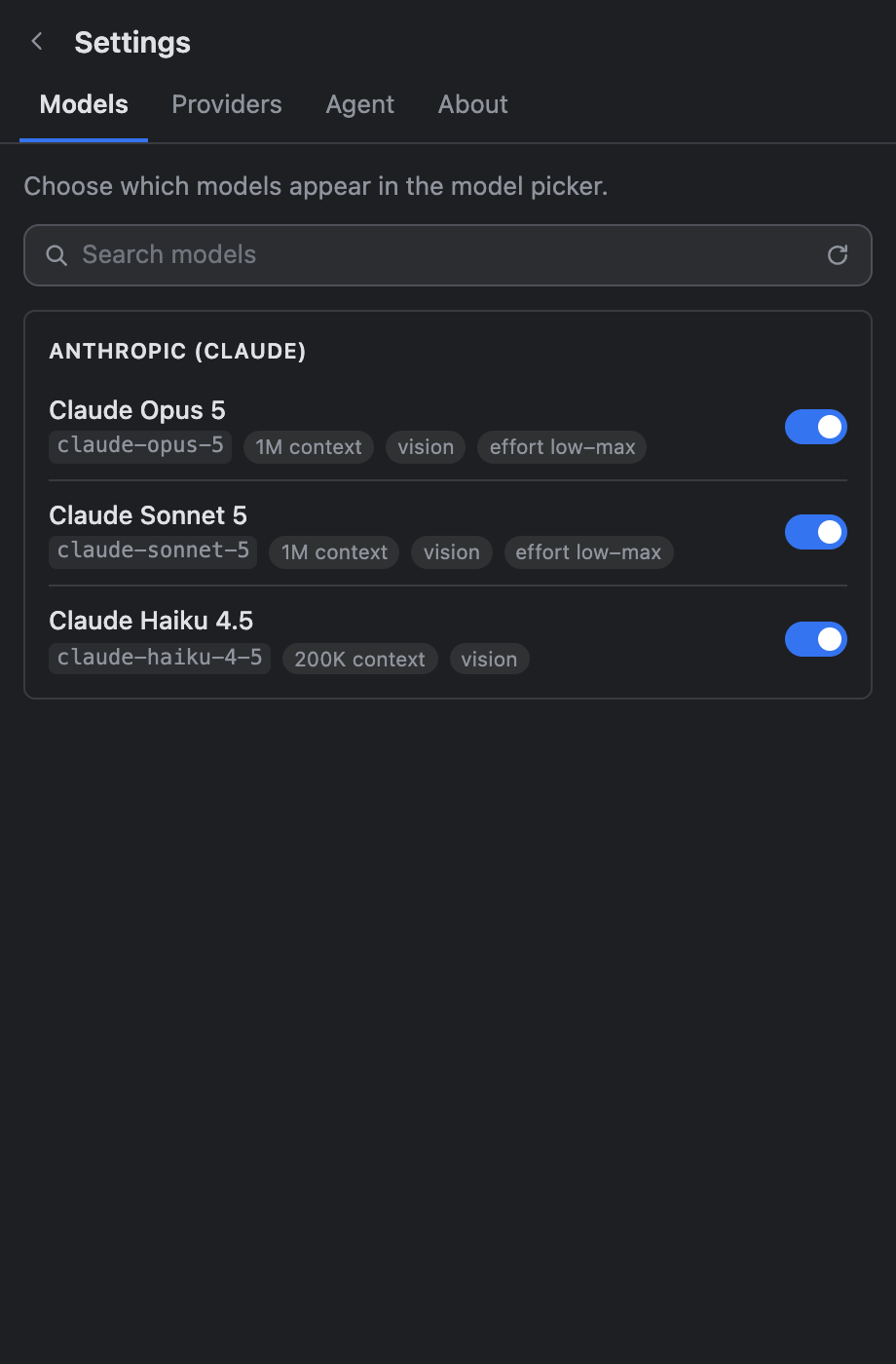
| Models | Every model of your connected providers, with context size, vision and effort tags, and a switch to show or hide it in the model menu |
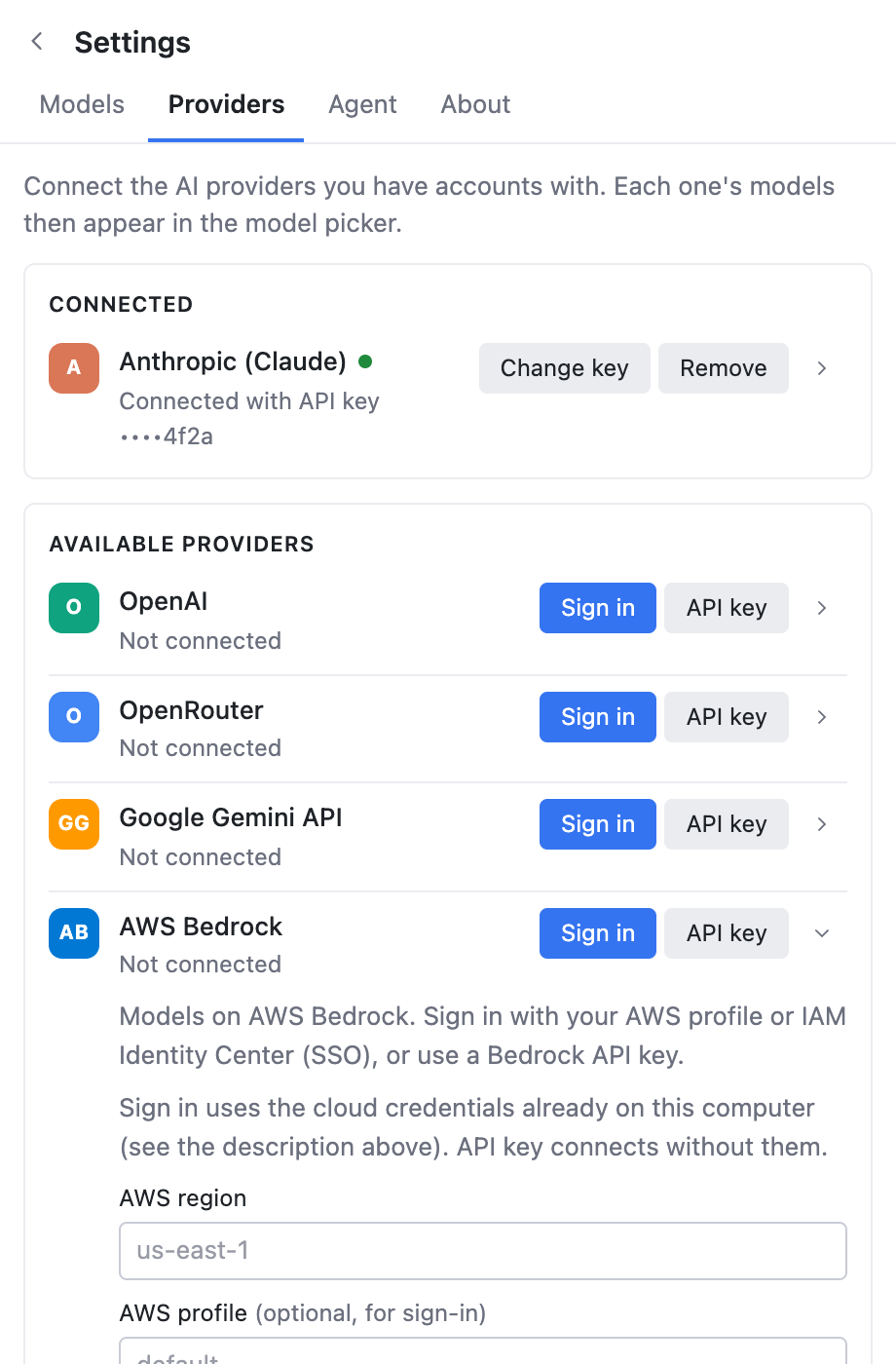
| Providers | Connect, sign in, change or remove keys. Provider settings (base URL, region, endpoint, …) are edited inline. Company providers are added, tested and edited here |
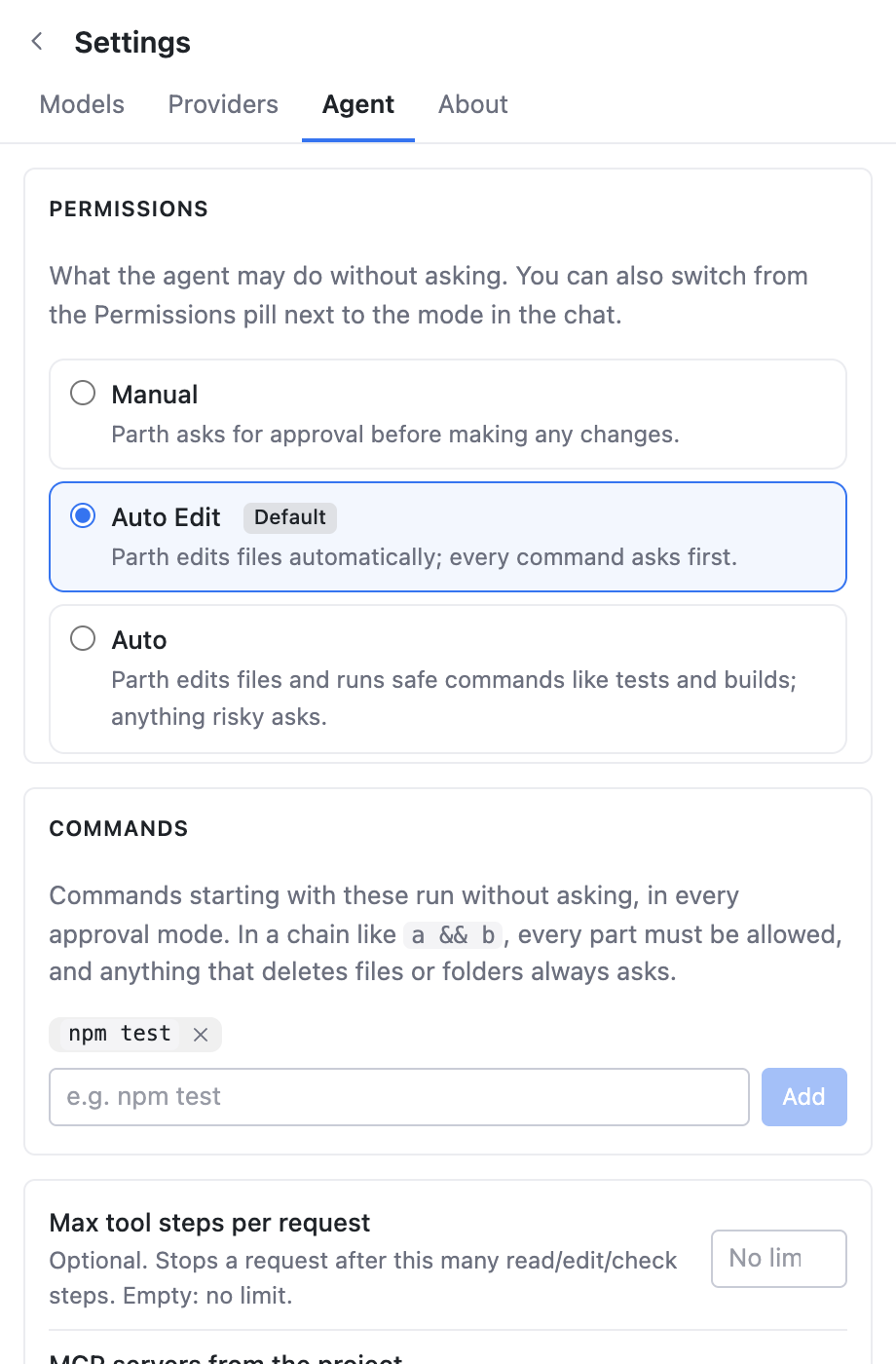
| Agent | Permissions · Commands that run without asking · Max tool steps per request · MCP servers from the project · Offline Mock model |
| About | Version · Show logs · Restart agent |
Models
Switch off the models you don’t want, to keep the model menu short. The switches are kept by Parth itself.
Providers
Connect providers here: see Connect a provider. Under Custom Providers you add and edit company providers, and Import settings… / Export settings… back them up. The form, with a screenshot of each card and the value for every field, is in Add one in the panel.
Agent
| Setting | What it does |
|---|---|
| Permissions | Manual, Auto Edit (default) or Auto. See Permissions |
| Commands | Command starts that run without asking in every mode, for example npm test |
| Max tool steps | The most model-and-tool round trips in one request. 0, the default, means no limit |
| MCP servers from the project | Also start the MCP servers listed in the project’s .parth/mcp.json. Turn this on only for projects you trust: a server entry is a command that runs on your computer |
| Offline Mock model | Scripted answers through the real tool pipeline, for trying Parth with no API key |
About
Shows the Parth version (include it when you report a problem), Show logs, and Restart agent, which restarts the agent process if it’s stuck.
It also has Help and feedback links: the documentation, the FAQ, and a link to report a problem or request a feature. In VS Code and JetBrains IDEs, Enjoying Parth? has a link to leave a review in the IDE’s store, and one to star the project on GitHub.
Settings in VS Code
Open Settings (Cmd+,; Ctrl+, on Windows and Linux) and search for Parth, or edit settings.json. The same applies to Cursor, Windsurf and the other editors built on VS Code.
| Setting | What it does |
|---|---|
parth.approvalMode |
Permissions: manual (asks before every change and command), autoEdit (edits apply and are listed for Keep / Undo; commands ask; the default) or auto (commands that pass the safety check run; risky ones ask). Also in the chat’s Permissions pill and /permissions |
parth.allowedCommands |
Command prefixes that may run without asking in every permissions mode, for example npm test. Matched on whole words; in a chain every part must be allowed; deleting commands always ask |
parth.maxToolRounds |
Maximum tool round trips per request. 0 (the default): no limit |
parth.highlightChanges |
Highlight the lines the agent added or changed in your files until you Keep or Undo them. On by default |
parth.reviewInEditor |
Show Keep / Undo above each change the agent made in your files, and Keep All / Undo All at the top of the file. Needs editor.codeLens. On by default |
parth.oauthClientIds |
OAuth client IDs for sign-in that needs a registered app, for example {"azure": "<entra-app-id>"} |
parth.providersFile |
The company and custom providers file. Empty: $PARTH_PROVIDERS_FILE, then ~/.parth/providers.json. Only use a file you trust: an entry can run a command to get its credential |
parth.mcp.enableWorkspaceServers |
Also start the MCP servers in .parth/mcp.json. Only for projects you trust |
Example settings.json:
{
  "parth.approvalMode": "autoEdit",
  "parth.allowedCommands": ["npm test", "git commit"],
  "parth.maxToolRounds": 0,
  "parth.highlightChanges": true
}
parth.approvalMode, parth.allowedCommands, parth.oauthClientIds, parth.providersFile and parth.mcp.enableWorkspaceServers are user-level settings. They apply in every window and aren’t read from a project’s .vscode/settings.json, so a repository you clone can’t loosen your permissions.
Settings in a JetBrains IDE
Open Settings → Tools → Parth. It has the Agent options above (permissions, allowed commands, max tool steps, project MCP servers) and these:
- Providers file: where the company providers are kept, if not
~/.parth/providers.json. Import settings… for company providers is next to it. - Node.js path: only for a plugin installed from a file instead of the Marketplace. For example
/opt/homebrew/bin/node(which nodeshows yours). - OAuth client IDs: for Azure sign-in with your own Entra app. You can also enter the client ID in Azure’s form under ⚙ → Providers, and that value wins.
Parth’s other menu commands are under Tools → Parth, and the shortcut for Add Selection to Parth Chat is in Settings → Keymap.
Files and folders Parth uses
| Path | What it holds |
|---|---|
~/.parth/chats (or PARTH_CHATS_DIR) |
Your saved chats. Readable only by you |
~/.parth/providers.json (or PARTH_PROVIDERS_FILE) |
Your company providers |
<project>/.parth/settings.json |
Only if you pick a project for a company gateway: that choice, one line per provider |
<project>/.parth/mcp.json |
MCP servers you write yourself. Parth reads it only when MCP servers from the project is on |
API keys and sign-in tokens aren’t in any of these. They’re in the IDE’s secure storage.
Next
Guides: company providers and local models · Troubleshooting