Ask for a change
- Send a request
- What you see while it works
- Keep typing while it works
- Fix your last message
- Code in the answers
- New chat
- Chat history
- Good to know
- Next
Send a request
Type what you want, for example “Add a required email field to User and update every place that creates a User”, and press Enter. ⌥+Enter (Alt+Enter) or Shift+Enter adds a new line.
What you see while it works
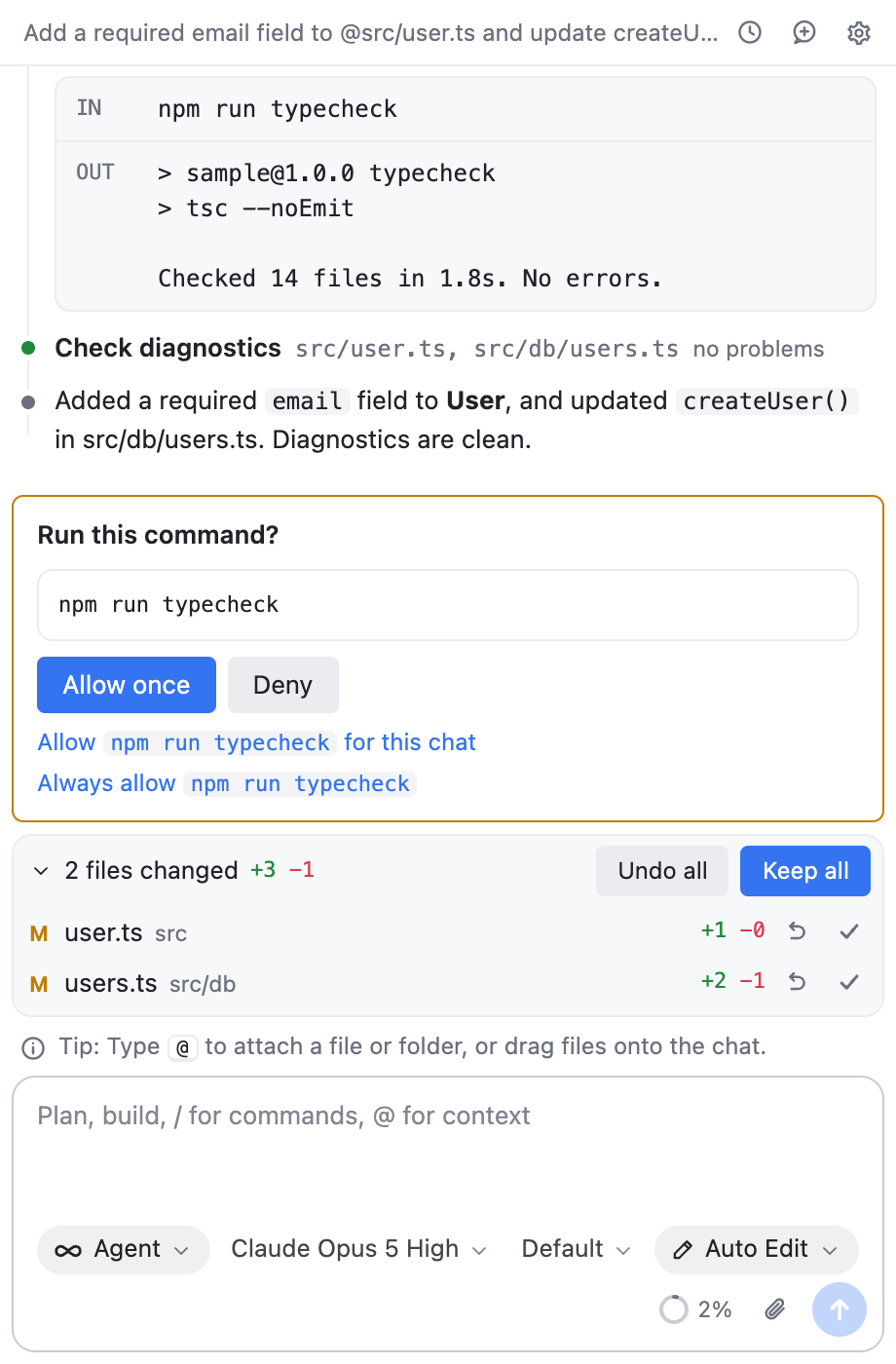
Each step appears on a timeline as it happens:
- what the agent says it’s doing, streaming in;
- every tool call, with a dot that pulses while it runs, turns green when it’s done and red when it fails:
- Run: a few words on what the command is for, then a box with the command (IN) and its output (OUT), and a timer while it runs;
- Edit and Create: the change as a diff;
- Read, Search, Find references and Check diagnostics: one line with a count (40 lines, 3 matches, no problems). Click the line to see the matches;
- the model thinking: Thinking… 4s while it lasts, then Thought for 12s. Click it for a summary of the reasoning, when the model returns one.
Reading while it works
The chat follows the answer as it’s written, but only while you’re at the end of it. Scroll up and the view stays exactly where you put it, however much the agent adds below. A ↓ Scroll to End button then appears: click it to go back to the latest and start following again. Sending a message always jumps to the end.
Stop
↑ becomes ■ Stop while it works. Stop cancels the request, answers an open approval card Deny, and ends a command the agent is running, with everything it started. The command’s output then ends with [Stopped by the user.].
Keep typing while it works
You don’t have to wait. Type while the agent works and press Enter: the message is queued above the message box, with the files you attached to it, and sends when the current request finishes.
- Queued messages go in order. × removes one.
- A header, Queued: sends when the agent finishes, stays in view with the number of messages.
- If a request is stopped or fails, or you start a new chat, the queue pauses until you press Resume (or send another message), so a follow-up doesn’t run on top of something that went wrong.
Fix your last message
To fix a typo, a missing detail, or an answer that went wrong, click your last message once the agent has stopped. It opens for editing in place. Change the text or remove a pill, then press Enter to send it again, or Esc to cancel. The edited message replaces that turn, so the model never sees the old version. Files the agent already changed stay changed: undo them in the changes list first if you want to start over.
Code in the answers
Each code block or command in the chat has a small toolbar above it: Copy puts the code on the clipboard, and Add to Parth Chat puts it in your next message as a fenced snippet, so you can ask about it or change it. The second button isn’t shown while the message box can’t take it, for example before you’ve picked a model.
New chat
New chat (the speech bubble with a plus, /new, or the IDE’s New Chat command) stops whatever the current chat is doing, the same way as Stop, and nothing more from the old chat appears in the new one. Commands you allowed for this chat are forgotten. Changes the agent already made stay in the changes list for Keep / Undo. The chat you left isn’t lost: it’s in the history.
Chat history
Click 🕘 in the header, left of the new chat button, for a list of your earlier chats in this project, newest first, each with its title and how long ago you last used it (now, 5m, 3h, 2d, 3mo). Type in the search box to filter. Click one to open it: the chat appears as you left it, and your next message carries on with everything the model had already seen. Point at a row and click the bin to delete that chat for good.
- A chat is saved each time the agent finishes a message (or you stop it), and only once you’ve sent something. Empty chats don’t show up.
- Chats are saved on your computer only, in
~/.parth/chats(or the folder inPARTH_CHATS_DIR), readable only by you, and never sent anywhere. The newest 100 are kept. Each project has its own list. - When the IDE opens, Parth reopens this project’s newest saved chat, so you can carry on where you left off. A project with no saved chat starts empty.
- If you switch chats while the agent is still working, the work in progress stops, and the chat comes back as of its last finished message.
- Permissions you gave for this chat aren’t brought back (the card asks again), and neither are files you had attached but not yet sent.
Good to know
- Slow steps through a gateway? The Parth log records each step’s timing (⚙ → About → Show logs).
- An expired sign-in behind a company gateway can drop the connection (
terminated — ECONNRESET). Parth fetches the credential again, by running your company’s sign-in command or refreshing the OAuth token, and sends the same step once more. The log says so. It tries this once per message. If it fails again, the provider’s own error is shown. - A gateway that doesn’t accept a request option (such as the 1-hour prompt cache): Parth sends the request again without it and logs a warning once.